You can connect Speicher to Grok as a custom connector. Grok can then search and read your documentation in a chat, with exactly the access you have yourself. Custom connectors work with a standard Grok account.
Not in the Grok mobile app
The Grok mobile app does not support MCP connectors. Add and use the Speicher connector in Grok on the web instead.
Grok Business and Enterprise
On Grok Business and Enterprise, a team admin adds the connector for the whole team first: in the xAI console (opens in a new tab), select the team, go to Grok Business → Connectors, click + Add Connector, choose Other and enter the /mcp address below. Each team member then connects their own account as described in step 2.
1. Add the connector
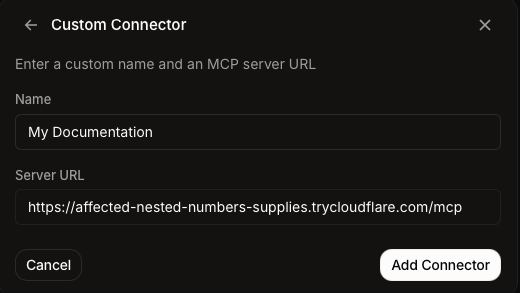
In Grok, open Plugins in the sidebar and stay on the Connectors tab, or go straight to grok.com/connectors (opens in a new tab). Click New Connector and choose Custom (Add your own custom connector) at the top of the list.
- Name: what the connector is called in Grok, for example
Company Docs. - Server URL: your Speicher address followed by
/mcp:
https://<hostname>/mcp
Click Add Connector.
2. Sign in and connect
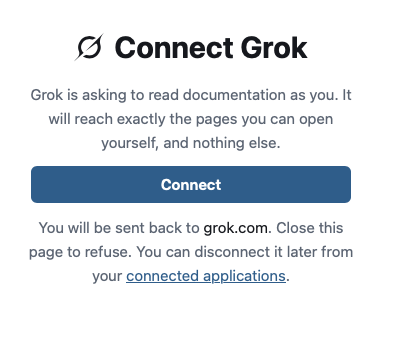
Grok opens Speicher to authorize the connection:
- Sign in to Speicher as usual.
- Speicher shows Connect Grok. Click Connect.
- You are sent back to Grok (
grok.com). The connector is now connected.
3. Use it in a chat
Grok makes Speicher's tools available in your conversations. Ask about your documentation, for example:
- "Search our docs for how to request a new laptop."
- "Read the onboarding page in the handbook and summarise the first week."
- "Which repositories in our docs talk about deployments?"
Disconnecting
To end the connection from Speicher, open Connected applications (/-/connections) and click Disconnect next to Grok. Your connectors in Grok are listed on grok.com/connectors (opens in a new tab).
Troubleshooting
Grok rejects the server URL.
Grok only connects to servers reachable over the public internet. A localhost or intranet address does not work.
Grok asks you to connect again every day. Your identity provider has no directory lookup, so connections end after the session lifetime. See How long a connection lasts.
Grok cannot find a page you can open in the browser. Make sure you signed in with the same account in step 2. Grok only sees what that account can see.